
What's New in Graylog 7.1
A look at the user interface and technical improvements introduced in Graylog 7.1
What’s New in Graylog 7.1
Graylog 7.1 introduces a wide range of improvements that make everyday work faster and more intuitive. The release adds quicker navigation, more flexible alert and event management, customizable message details, improved overview tables, and several changes under the hood. This article walks through the most notable additions.
User Interface
Quick Jump
The new Quick Jump feature provides fast, intuitive access to the function or object you need. Open it by selecting the magnifying-glass icon in the navigation bar or by pressing Ctrl+K or Ctrl+Space.
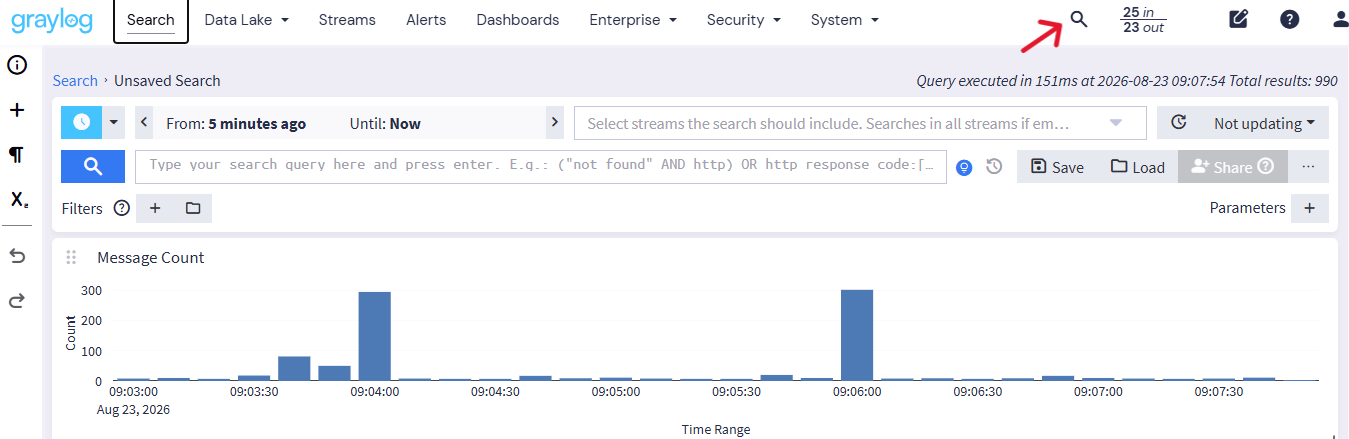
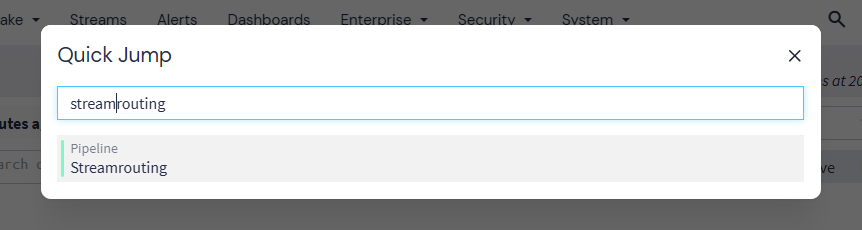
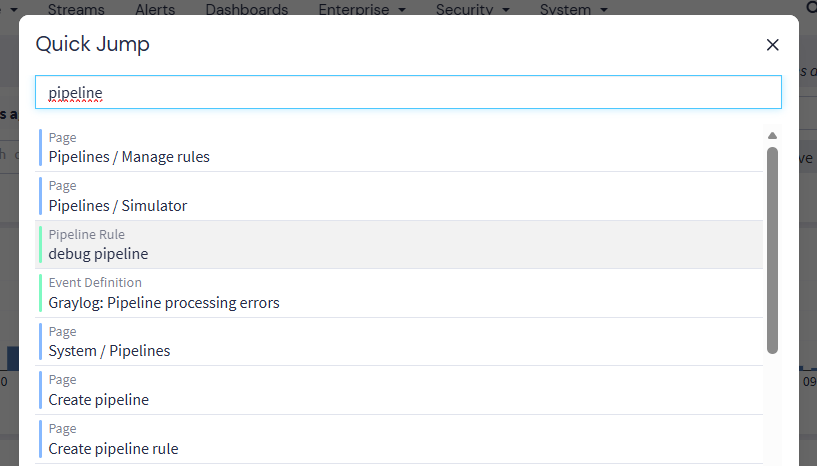
You can search for objects and actions and navigate directly to the corresponding page.
Axis Labels
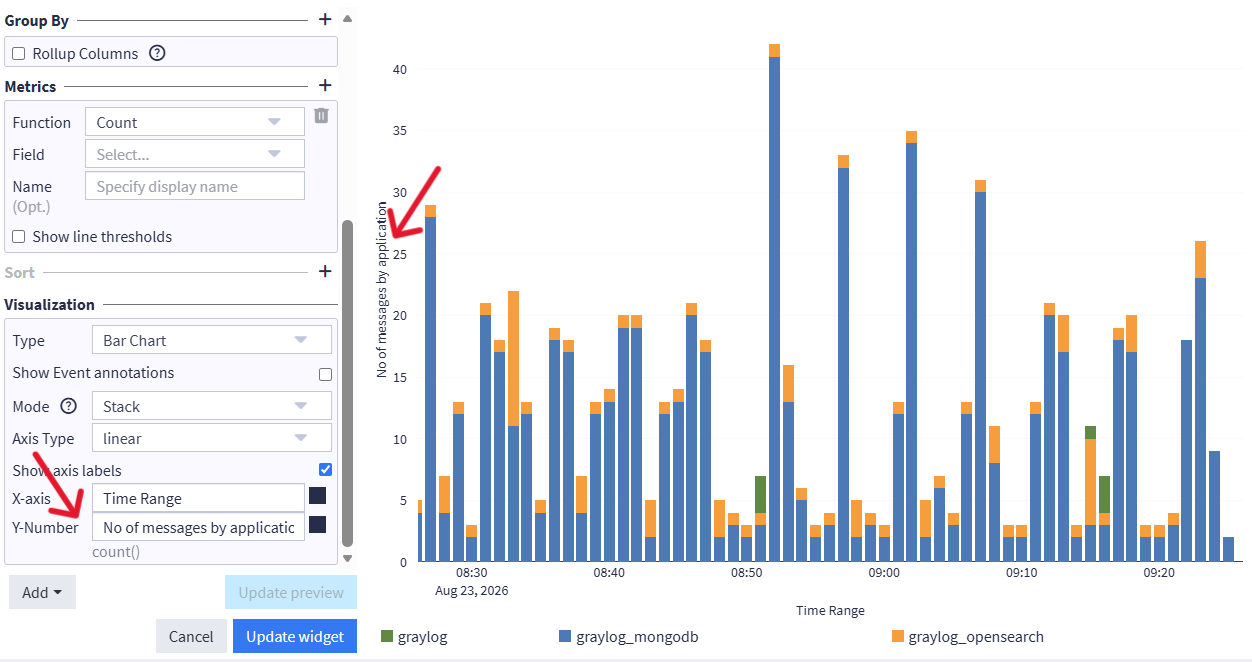
You can now add labels to chart axes in widgets, making visualizations easier to understand.
Alerting: Shorter Default Time Range
The default time range for displayed alerts has changed from 180 days to 30 days. The new default applies to both the histogram and the alert table. A future release is expected to add a time picker for selecting the range directly.
Alerting: Replay Search
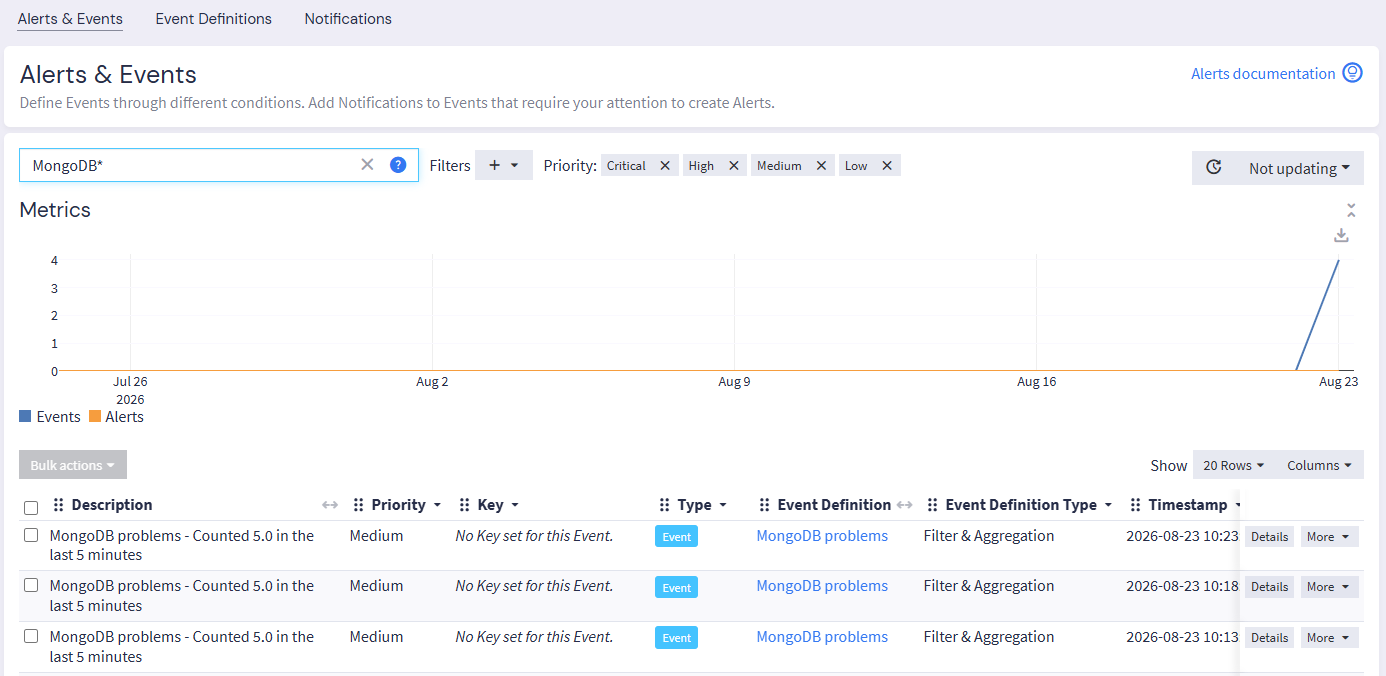
Alert and event details for a replay search have moved from the top of the page to a panel on the left. Starting a replay search no longer opens a separate window. The detail panel is also available when running a bulk replay search.
Alerting: New Info Priority
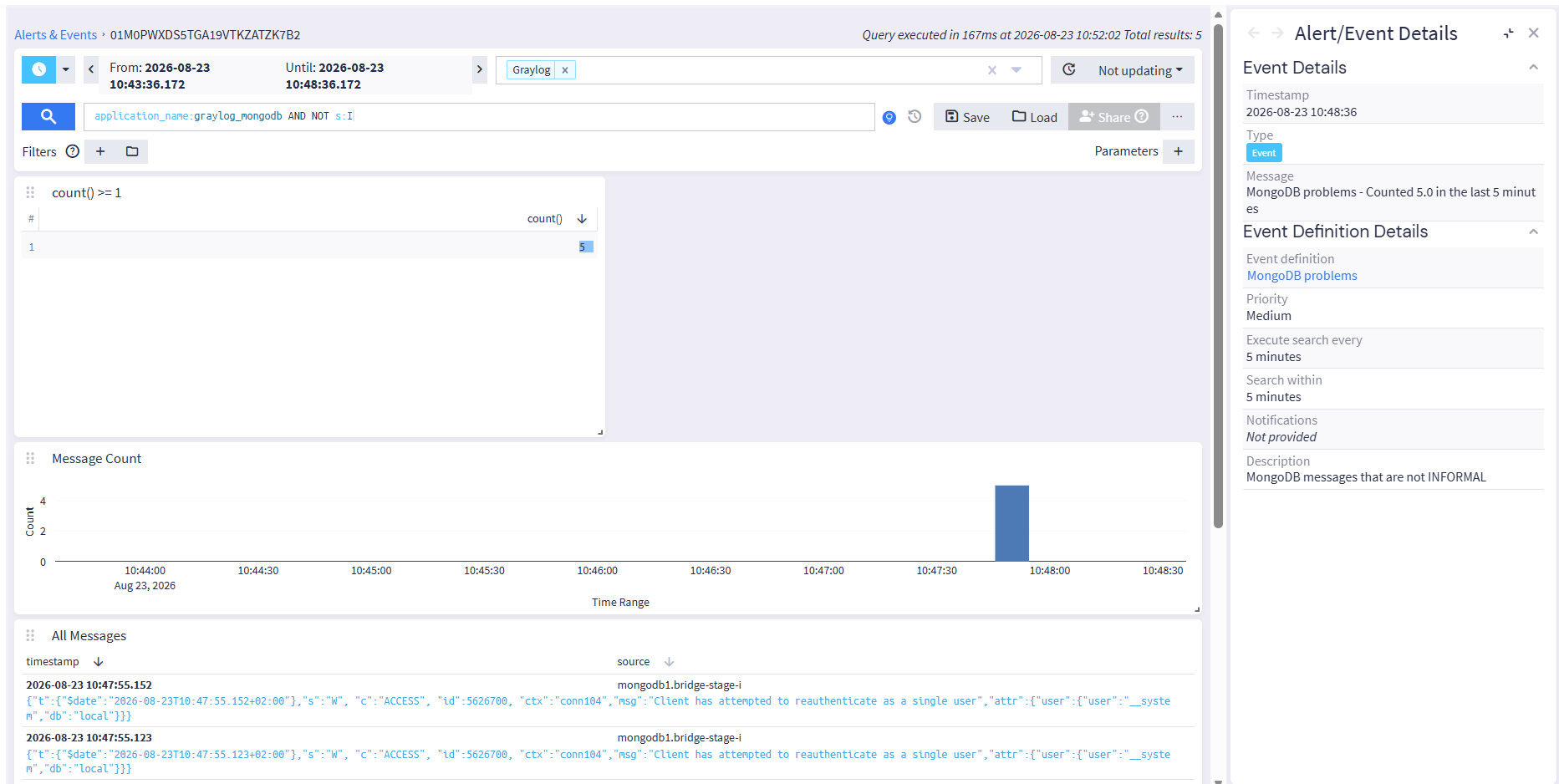
The available priorities for alerts and events now include Info. Events with this priority are hidden by the default filter. This makes it possible to create informational events for troubleshooting correlated events without cluttering the regular alert view.
Alerting: Templates for Event Summaries
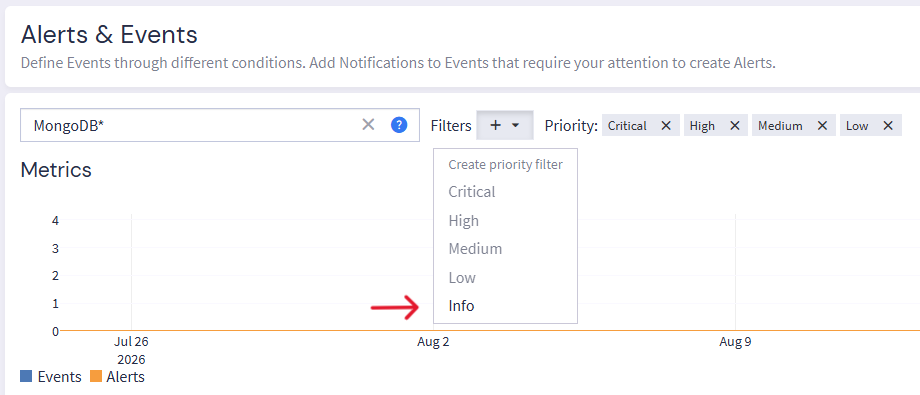
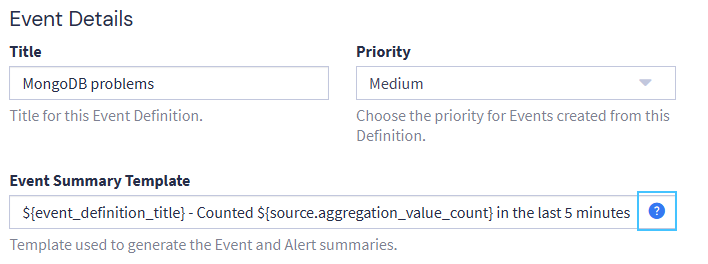
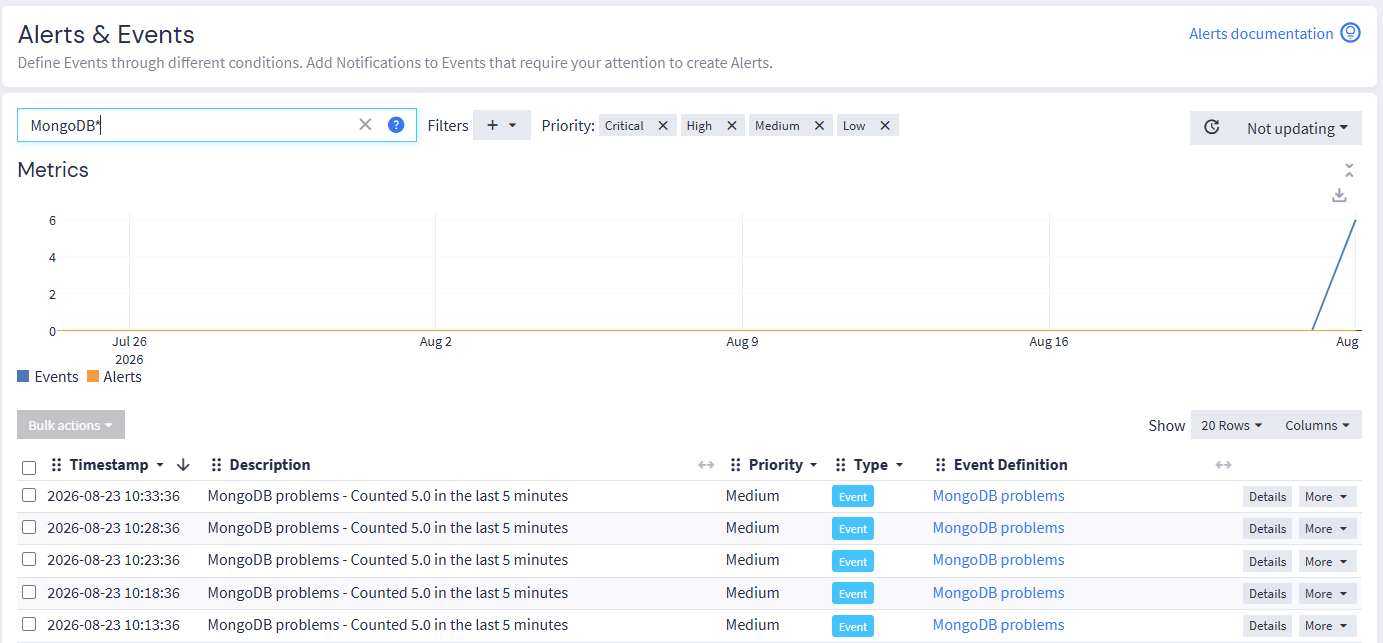
Event summary templates provide a flexible way to populate the summary of an alert or event. They can enrich events with additional information that helps users understand and investigate them. Context-sensitive help for configuring the template is available in the interface.
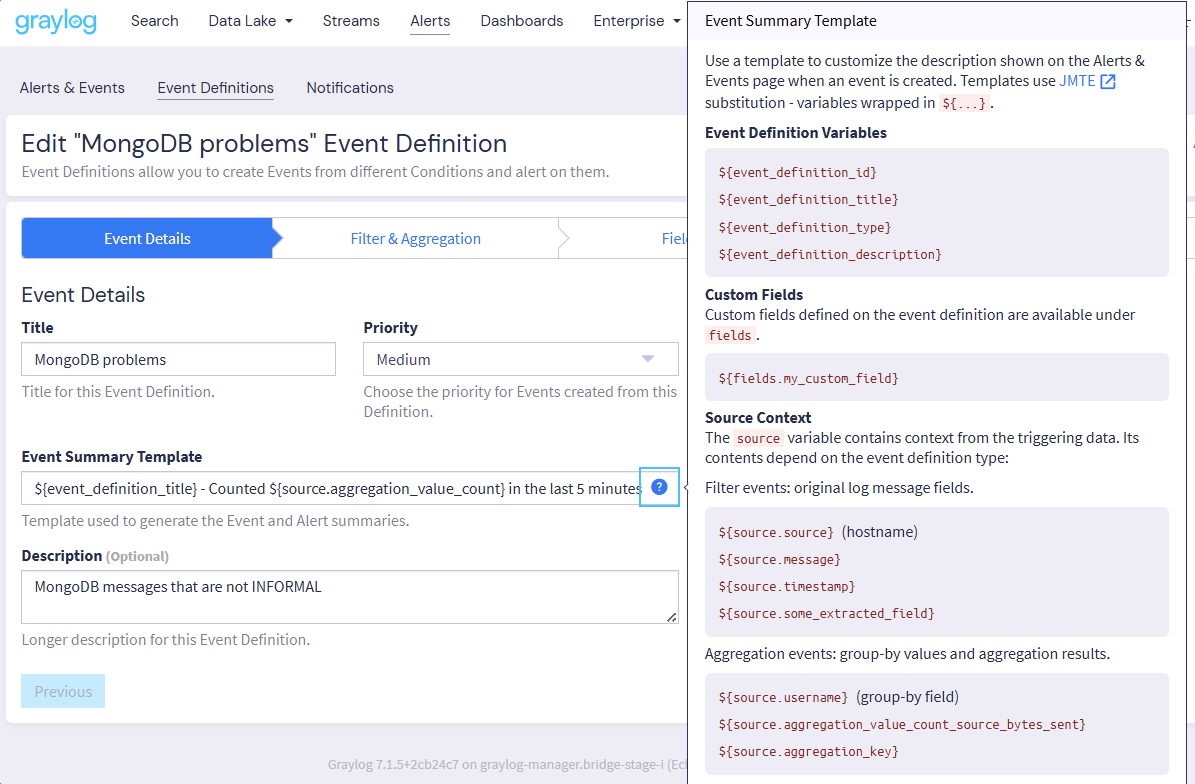
The following example shows how a template is turned into a description in the resulting alert or event.
Favorite Fields
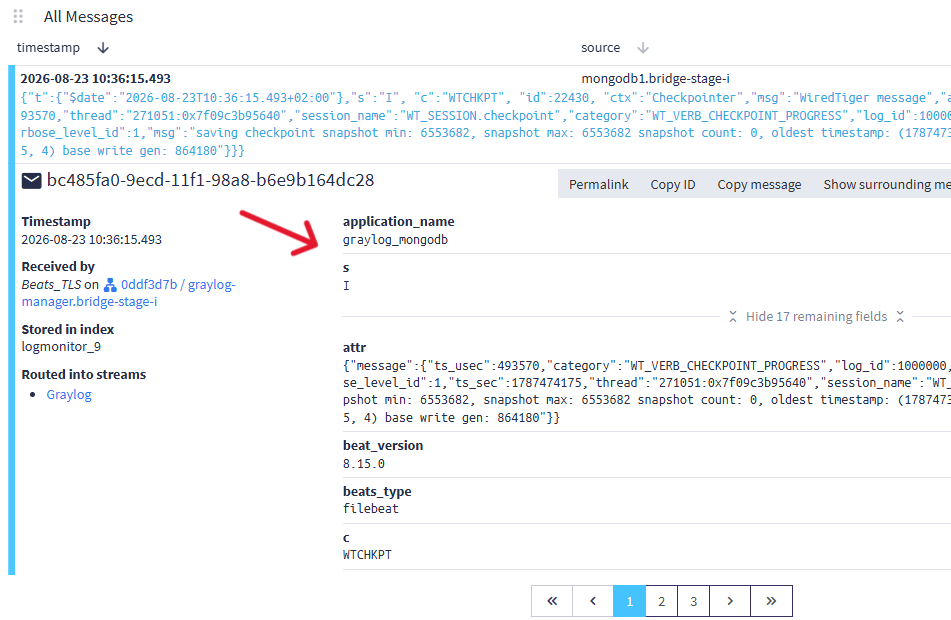
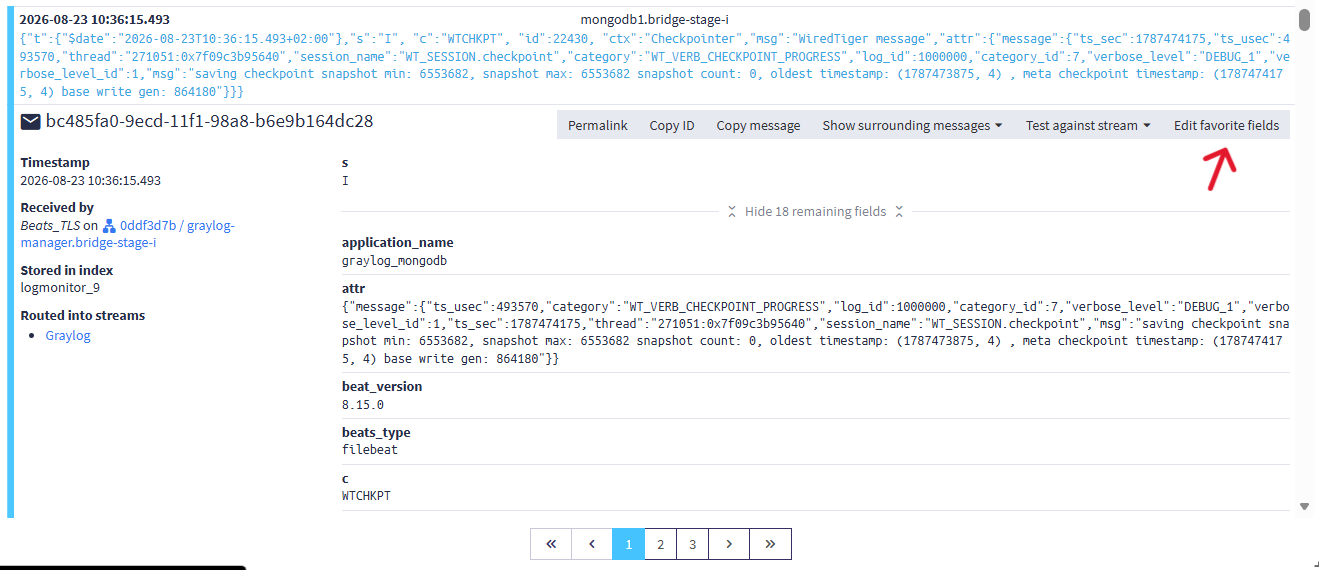
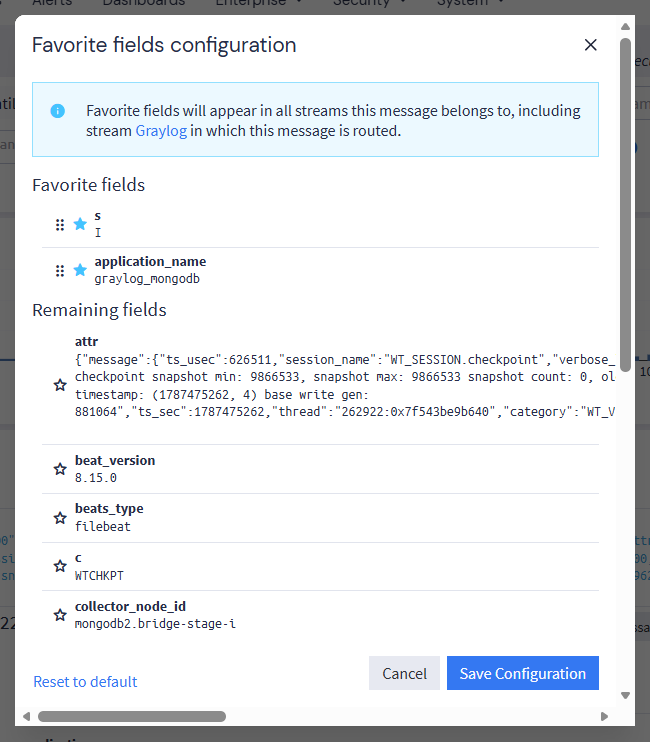
The list of fields shown in the message details is now customizable. Fields configured as favorites appear in a dedicated group at the top of the list, making messages with many fields easier to review.
Favorite fields are configured per stream and apply to messages assigned to that stream. If a message belongs to multiple streams, favorites from all of those streams may be shown. The source field is included by default.
At the time of writing, only administrators can reliably manage favorite fields. Although regular users can interact with the editor, their changes may not take effect.
In this example, application_name and s are configured as favorite fields and appear together at the top of the message details.
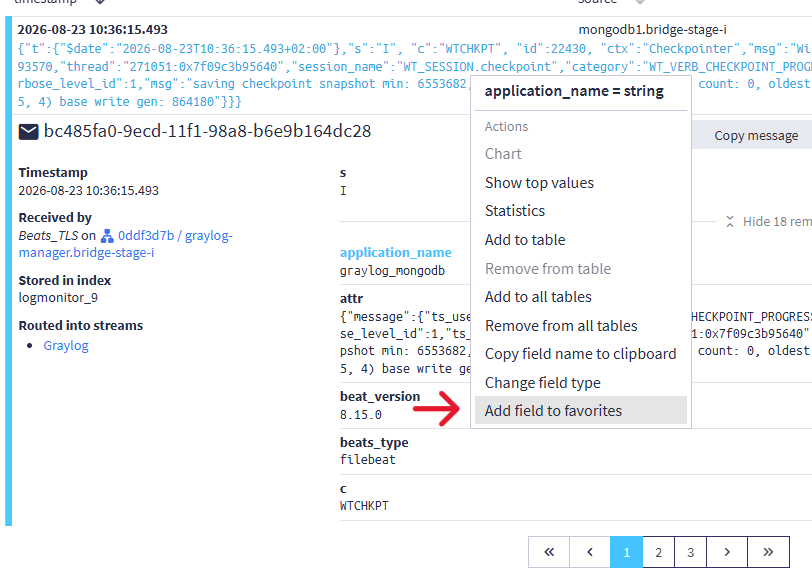
You can add a field to, or remove it from, the favorites through its context menu.
Alternatively, use the Edit favorite fields button in the message details to manage the complete list.
Improved Tables on Overview Pages
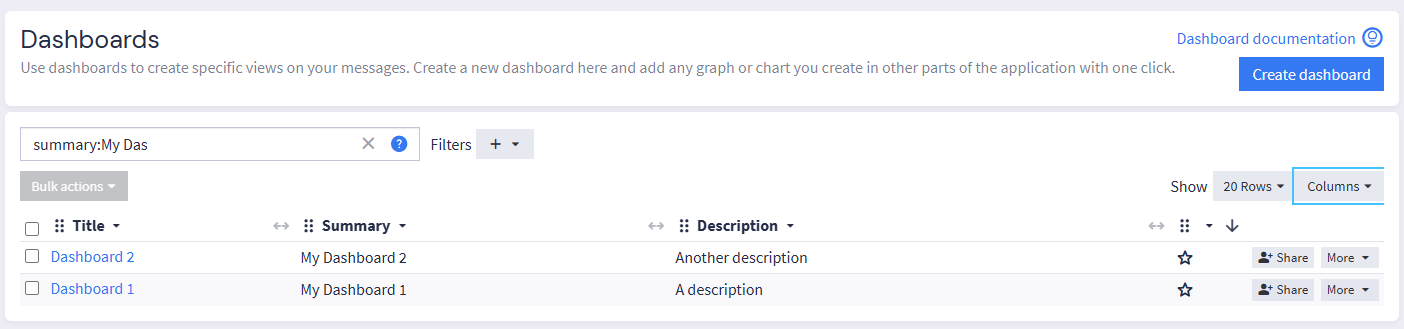
Graylog 7.1 improves the tables used on overview pages for dashboards, alerts, streams, reports, inputs, and saved searches. You can rearrange columns and adjust their widths using drag and drop.
Together with the existing column selector, these options let each user tailor the displayed information to their needs.
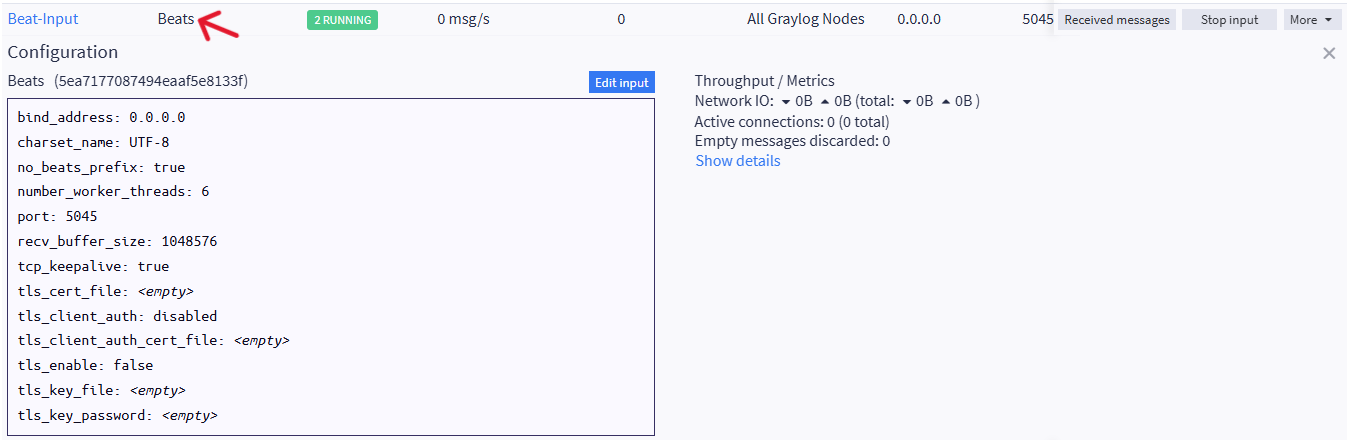
The input overview includes a few additional improvements. Selecting a value in the table expands the details for that input.
Input Diagnostics now includes a new Rules page alongside the Overview page. It shows which pipeline rules route data from the input and which streams receive that data.

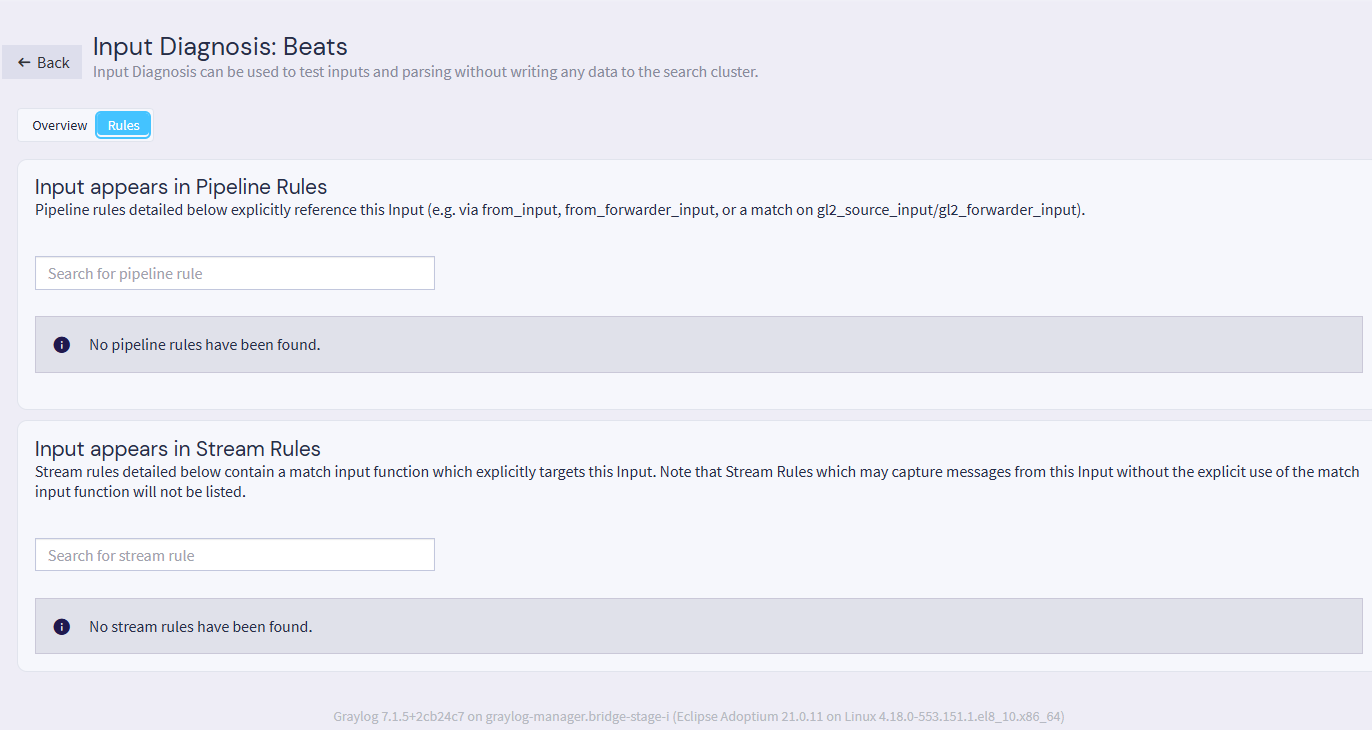
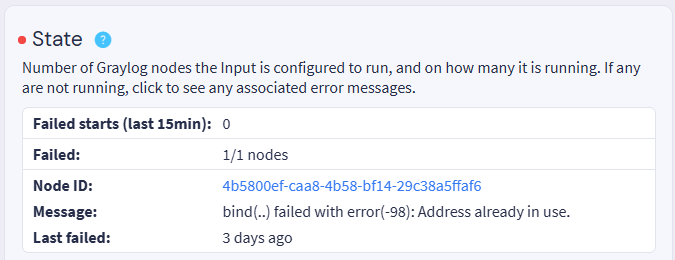
A new metric also indicates errors that occur while an input is starting.
Note: This view does not represent the complete stream-routing configuration when the routing logic uses criteria other than the input ID.
Technical Improvements
Automatic Shard Sizing
Graylog can now determine an appropriate shard size for index rotation based on the memory available to the OpenSearch nodes.
Previously, the shard size was controlled by the TIME_SIZE_OPTIMIZING_ROTATION_MIN_SHARD_SIZE and TIME_SIZE_OPTIMIZING_ROTATION_MAX_SHARD_SIZE configuration parameters. These parameters no longer have default values. If either value is not set, Graylog derives the shard size from the smallest amount of RAM available on any OpenSearch node with the data role.
The calculated size is capped at a minimum of 5 GB, with a 20 GB fallback if the calculation fails.
Containerized deployments require particular attention because the detected memory may not accurately reflect the resource limits or intended sizing of the containers. Explicit configuration may therefore remain preferable in these environments.
Another disadvantage is that this only works for Graylog Data Nodes and not with a self-managed OpenSearch setup.
Redesigned API Browser
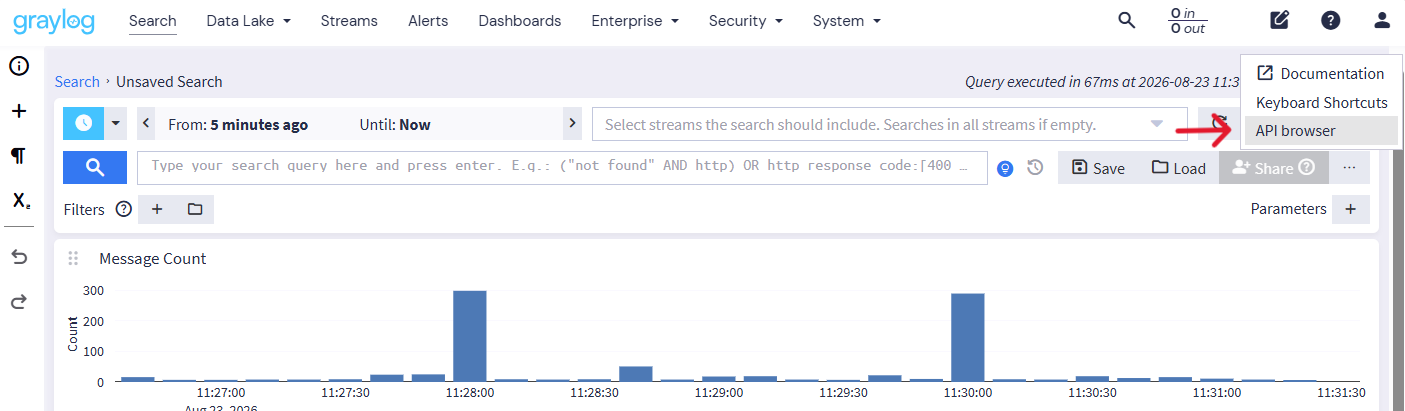
The Swagger-based API browser has been replaced with a React implementation that supports OpenAPI 3.1. It is embedded in the Graylog interface, offers a more modern presentation, and provides a machine-readable API description. Open it from the question-mark menu by selecting API Browser.
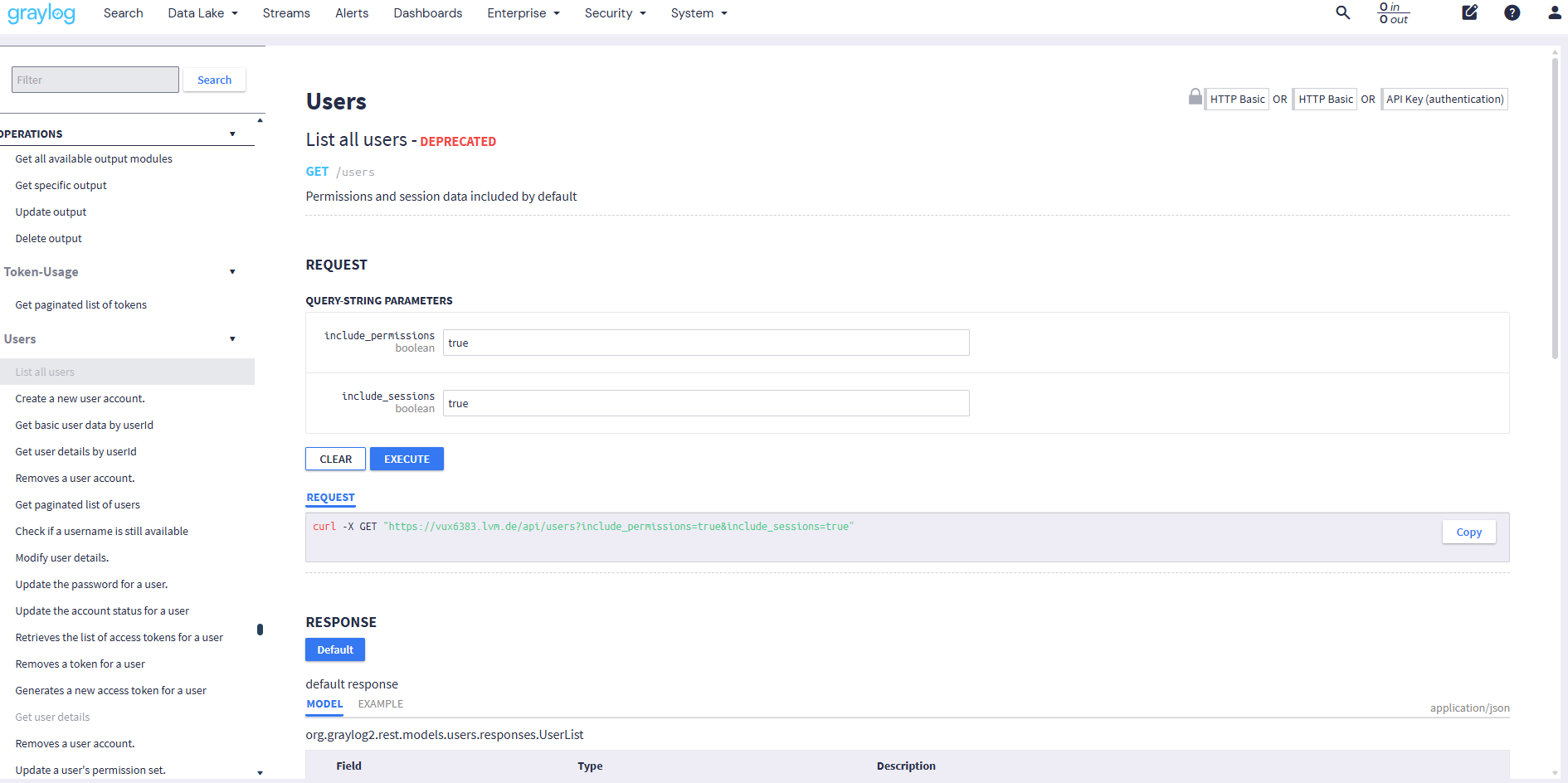
The OpenAPI description also makes it easy to inspect the API programmatically. For example, the following command lists endpoints marked as deprecated:
curl -sf http://localhost:9000/api/openapi.json \
  | jq -r '.paths | to_entries[] | .key as $path | .value | to_entries[] | select(.value.deprecated? == true) | "\($path),\(.key),\(.value.summary)"'
Example output:
/api-docs,get,Get API documentation - Deprecated: Consider the OpenAPI description at '/api/openapi.yaml' instead.
/api-docs/global,get,Get API documentation with cluster global URI path - Deprecated: Consider the OpenAPI description at '/api/openapi.yaml' instead.
/api-docs/{route},get,Get detailed API documentation of a single resource - Deprecated: Consider the OpenAPI description at '/api/openapi.yaml' instead.
/cluster/{nodeId}/shutdown,post,null
/events/definitions,get,List event definitions
/events/notifications,get,List all available notifications
/plugins/org.graylog.plugins.illuminate/bundles/{version},post,Enable bundle
/plugins/org.graylog.plugins.license/licenses,get,Show all installed licenses
/plugins/org.graylog.plugins.license/licenses/status,get,Show status for all installed licenses
/plugins/org.graylog.plugins.license/licenses/status/for-subject,get,Show license status for all installed licenses
/plugins/org.graylog.plugins.license/licenses/{licenseId},get,Show license by ID
/plugins/org.graylog.plugins.report/reports,get,List all reports.
/plugins/org.graylog.plugins.securityapp.investigations/investigations/summary/{investigationId},post,creates a summary for the given investigation
/streams,get,Get a list of all streams
/streams/no_security,get,Get a list of all streams, excluding security streams
/streams/{streamid}/rules/{streamRuleId},post,null
/system/cluster/stats,get,Cluster status information.
/system/cluster/stats/elasticsearch,get,Elasticsearch information.
/system/cluster/stats/mongo,get,MongoDB information.
/system/deflector,get,Get current deflector status
/system/deflector/cycle,post,Cycle deflector to new/next index
/system/grok,get,Get all existing grok patterns
/system/indexer/overview,get,Get overview of current indexing state, including deflector config, cluster state, index ranges & message counts.
/system/sessions/{sessionId},delete,Terminate a session
/system/shutdown/shutdown,post,null
/users,get,List all users
/users/{username},get,Get user details
Expanded Cluster View
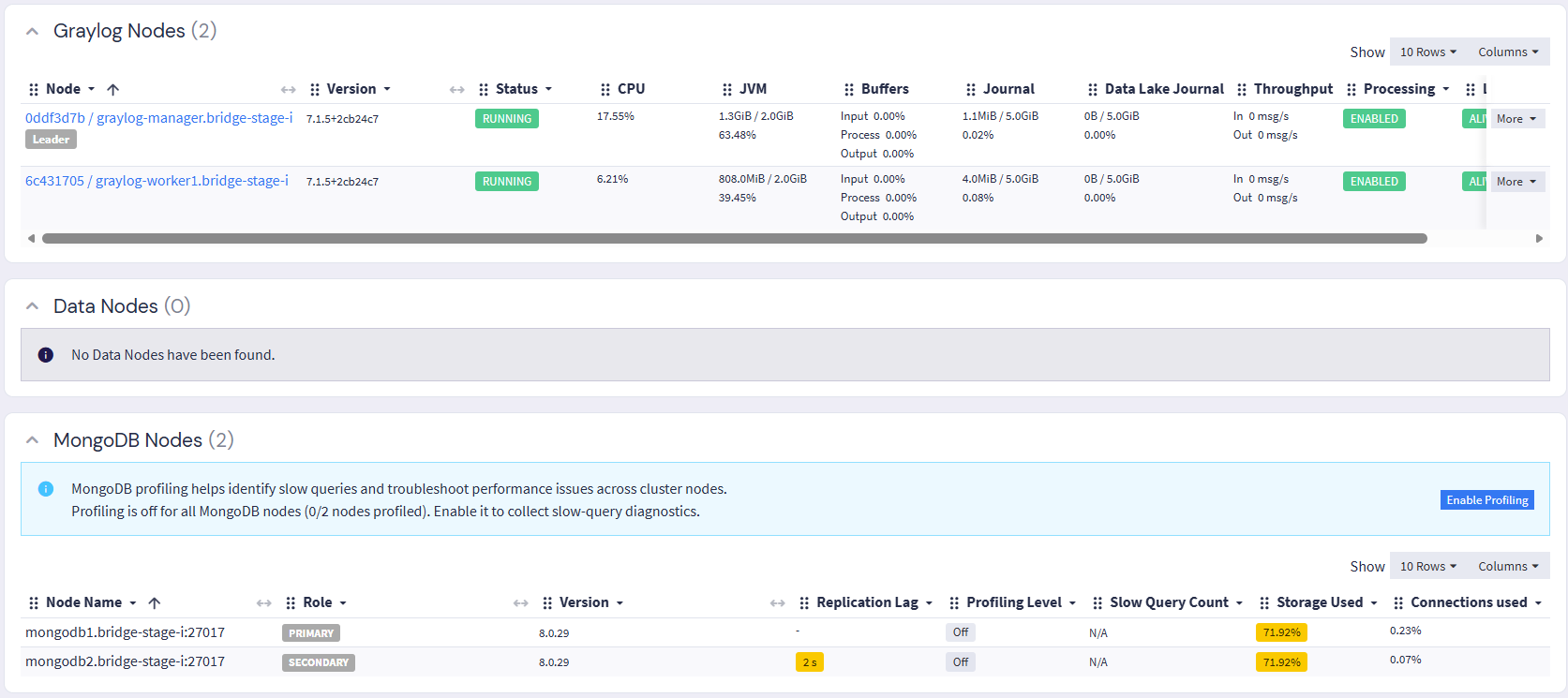
The System → Cluster Configuration page now groups cluster nodes by their roles: Graylog, Data Node, and MongoDB. As a result, MongoDB nodes are now visible in the Graylog interface. Self-managed OpenSearch nodes are not included in this view.
Upcoming Features and Roadmap
OpenSearch 3.x Support
Graylog 7.1 lays the groundwork for supporting OpenSearch 3.x. Graylog now uses version 3 of the OpenSearch client to communicate with OpenSearch 2.x. Calls to the deprecated REST high-level client have been migrated to the current Java client.
The interface also identifies indices that would become incompatible after an OpenSearch upgrade.

Collector Management
Graylog 7.1 introduces the foundations of an OpAMP-based fleet-management system for OpenTelemetry Collectors. The Graylog Collector management feature is still classified as beta in this release.
Conclusion
Graylog 7.1 combines practical usability improvements with important technical groundwork. Features such as Quick Jump, favorite fields, configurable overview tables, and enhanced alert management simplify everyday workflows, while the redesigned API Browser and preparations for OpenSearch 3.x modernize the platform behind the scenes. Not every addition is fully mature yet, but the release makes Graylog easier to navigate, more flexible to operate, and better prepared for future development.